
Seismic Station Monitoring Instructions
Using the IRIS Station Monitor Website
Prepared by John Russell
Introduction
The IRIS Station Monitor website (https://www.iris.edu/app/station_monitor) can show you how the ground beneath you shakes. It shows real-time data from seismometers that measure shaking all over the world. The website has many useful features, such as looking at earlier times or looking at shaking specific to certain earthquakes. Here are the steps to find and understand the information.
1. Finding a Station
This is the home page for the IRIS Station Monitor website. If you click the green “Find Stations Near Me!” button (see the dark magenta arrow in Figure 1), the webpage will provide a list of station names close to your physical location, in a drop down list underneath the “Search by Zip Code or Station Name” search bar (see the dark gold arrow in Figure 1). A similar list is provided if you enter a ZIP code or city (ex. RENO, NV) into this search bar. Clicking one of the station names or entering in a station name into this search bar and pressing enter will direct you to a webpage that presents the last 24 hours of data collected from the selected station.
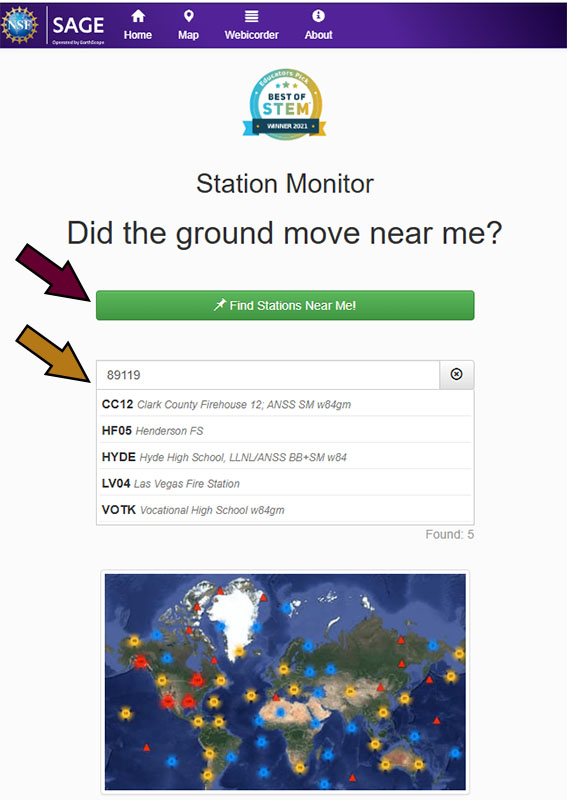
Figure 1: Station Monitor homepage. Select a station.
2. Choosing What Time to View
A station’s webpage usually shows the last 24 hours of shaking, but you can also select other dates to see how the ground moved on different days. To do so, find the “Date UTC” section on the screen and click “Calendar” under the listed date and time to select a different day of the month (see the dark blue arrow in Figure 2). You can also click back to previous months, and to previous years if you click back far enough. Sometimes stations temporarily stop sending data. If one day doesn’t show data, try selecting another day or return to step 1 and select a different nearby station.
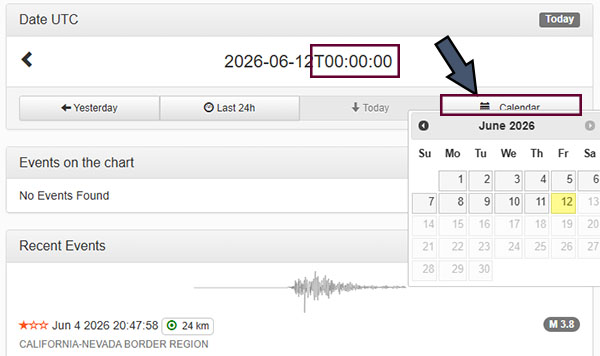
Figure 2: Selecting another day’s data based on calendar day.
The time listed after the selected date is reported in 24-hour time in hours, minutes, and seconds (HH:MM:SS) (the numbers circled in dark magenta on Figure 2). The hour “00” represents 12 AM and “23” represents 11 PM. This time is not in the local time zone in Nevada. It is being reported relative to Universal Coordinated Time (UTC). A plot that starts at “00:00:00” (UTC) means in Nevada it starts at 4 PM the previous day (or 5 PM when Nevada is on Daylight Savings. When dealing with stations all around the world, it is convenient to have all data reported relative to the same time. This way, when ground motion from the same activity begins to be recorded at stations in different time zones, it is easier to calculate the time it takes to travel from one station to the other.
3. Reading Seismograms
As can be seen in Figure 3, the shaking is plotted in a stack of 24, 1-hour plots, which the webpage refers to as a chart. The earliest hour is at the top of the figure, while the latest is at the bottom. Each of these plots is known as a seismogram. The length of time does not have to be an hour for the plot to be a seismogram, there just needs to be measured ground motion. Larger spikes in a seismogram means stronger shaking.
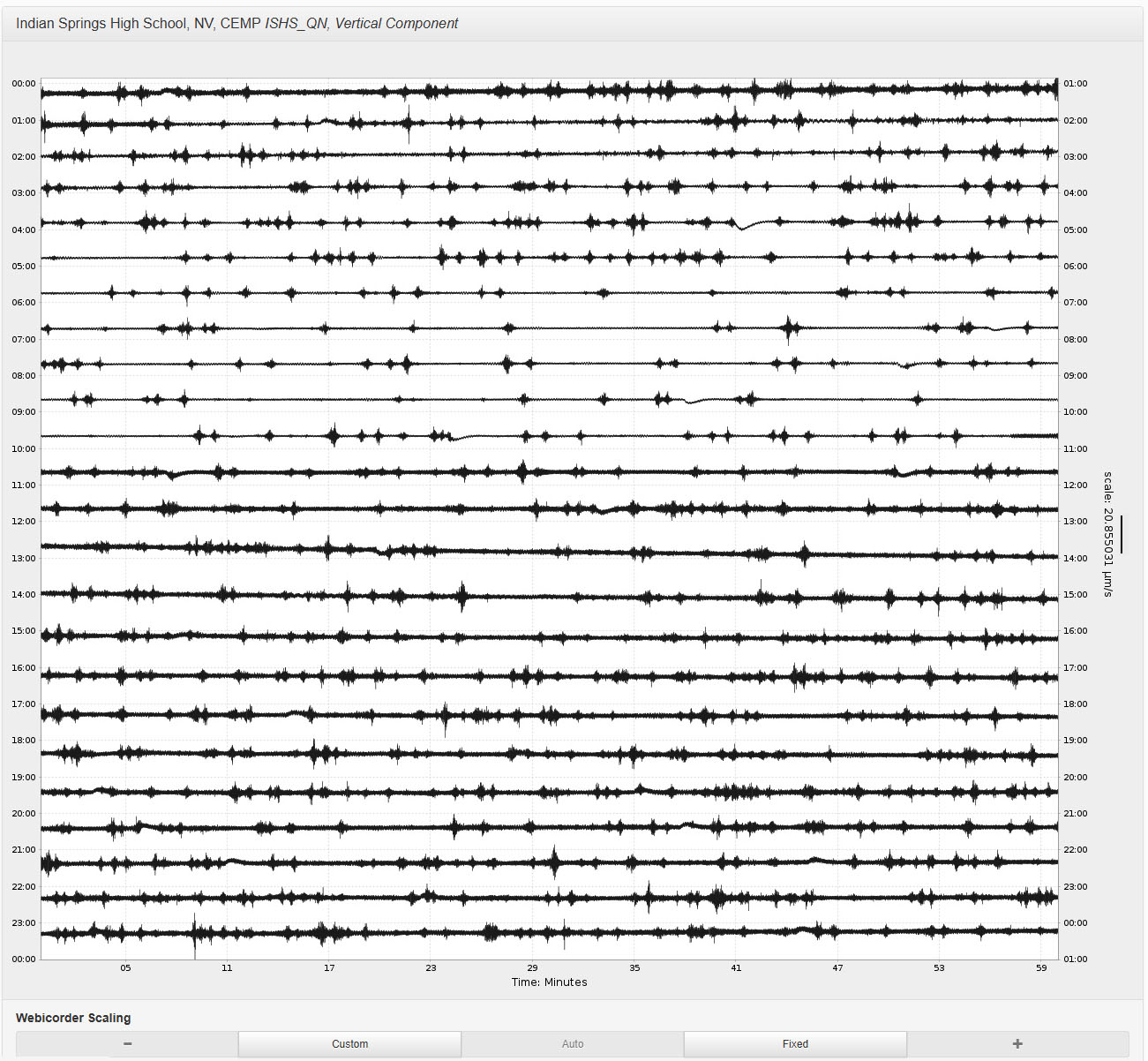
Figure 3: Example default 24, 1-hour plots for a complete day at Indian Springs High School (ISHS). The Station Viewer webpage calls this stack of plots a chart.
4. Looking at specific events
Not all shaking in a chart like in Figure 3 comes from earthquakes. Shaking can also come from sources like people walking nearby, heavy trucks driving by, or strong winds passing over the seismometer. Fortunately, after shaking from an earthquake is measured over multiple stations, the time such shaking begins is then determined for all stations. This time for a station is then used to mark the beginning of an “event” on that station’s chart of seismograms.
Find the area that lists “Events on the chart” (see the dark green arrow on Figure 4), “Recent Events” (see the dark brown arrow on Figure 4), and “Notable Events”. “Events on the chart” represents shaking from events that are present in the chart for the current station. “Recent Events” represents shaking from events that aren’t present in the chart for the current station but can be found in seismograms that were recorded recently, usually within the past few days. Clicking on one of the events under “Recent Events” will take you to the webpage for the day that the contains the seismogram containing that event. On that webpage the event will then be listed under “Events on the chart”.
“Notable Events” may or may not be present on the chart. These include events of at least magnitude 7 (M 7). The larger the magnitude, the more powerful the earthquake. Larger magnitude earthquakes are less frequent than smaller magnitude ones, so events listed under “Notable Events” often occur on dates much further back than a couple of days.
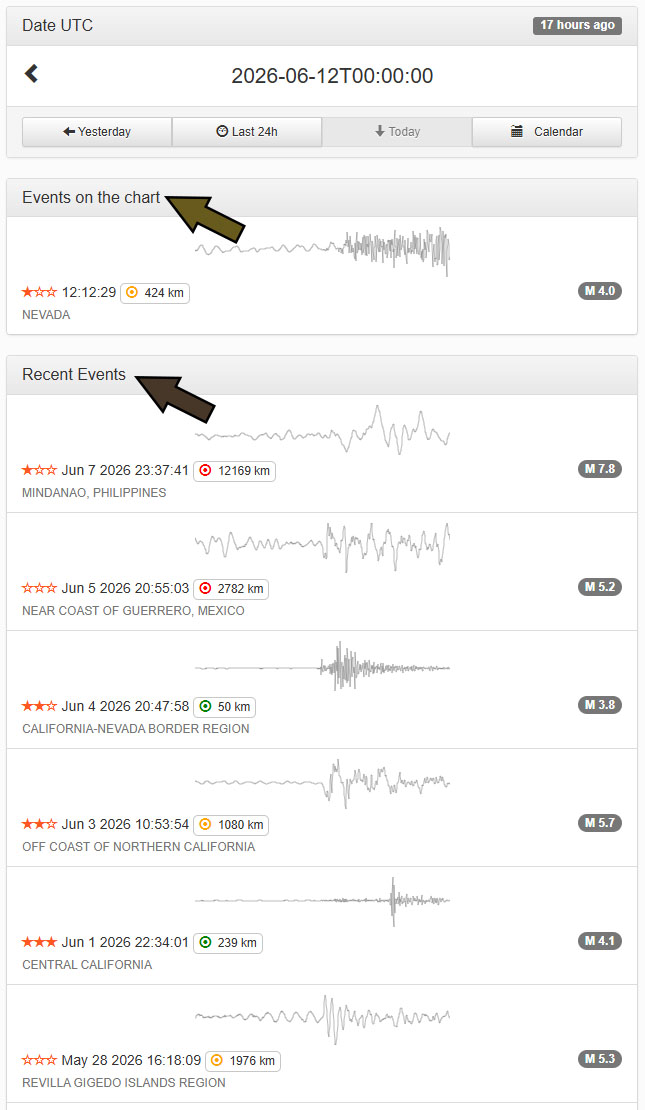
Figure 4: List of events to select from.
Clicking one of the events highlights the seismogram on the chart where the shaking occurs by using a magnifying glass icon (see Figure 5). If you click on the magnifying glass icon you are taken to a webpage that displays additional information about the event, like in Figure 6.
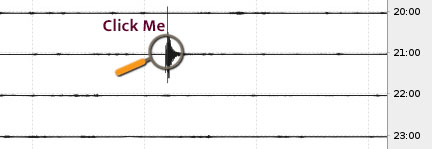
Figure 5: Event selected on one of the 1-hour seismograms in the chart of 24 1-hour seismograms.
On the webpage for a specific event, a higher resolution seismogram of the ground motion is provided (see Figure 6). Marked on the seismogram are estimated times when two types of seismic motion from the event were expected to arrive at the station. The “P” stands for “primary” seismic waves and the “S” for “secondary” seismic waves. This is because the time for P -waves usually happens first. Additional information on this webpage includes distance on a map between the station and the location of the event, how deeply into the earth the event occurred, and the magnitude of the event. With both ground motion and sound being made up of waves, the webpage provides a way to “Listen to the event” by clicking on the “play” icon (►) below the map.
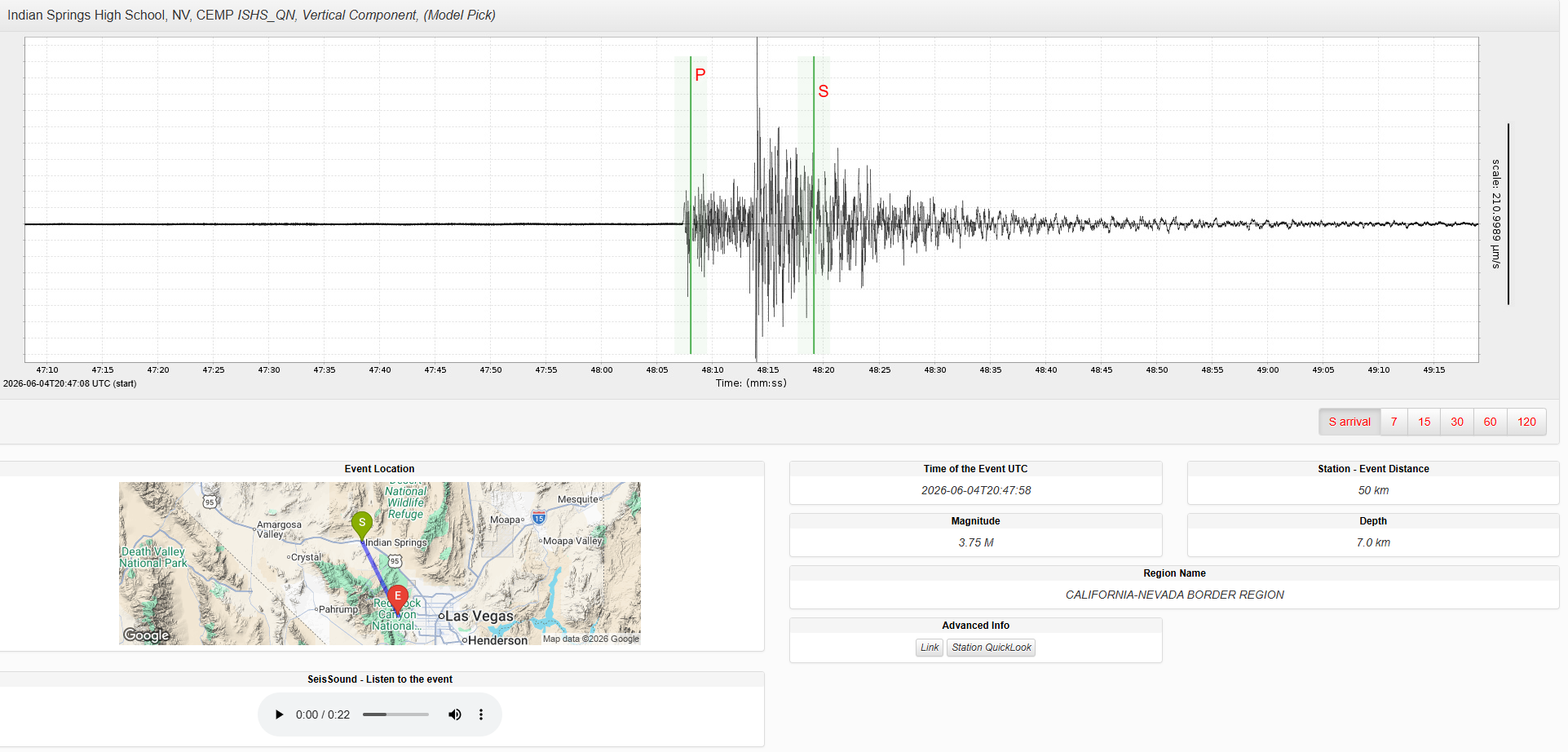
Figure 6: Details on selected event after pressing the magnifying glass icon.
5. Advanced Features: Changing the Channel
By default, the shaking motion presented in a station’s chart of seismograms is in the vertical direction, moving up and down with respect to the ground. The seismometers in some stations, like those in the CEMP Seismic Network (QN), also record shaking motion in the horizontal directions of north to south and east to west.
Return to the screen with the chart of seismograms (see Figure 7). Under the lists of events, click on “Advanced Features” and select “Channel” (see Figure 8). Stations in the CEMP Seismic Network have three channel options to choose from: “HHE”, “HHN”, and “HHZ”. The channel ending in “Z” is the initial webpage displayed after selecting a station (see figure 7). The HHZ channel measures shaking motion in the vertical direction (up and down). The HHN channel measures shaking motion in the north-to-south direction, while the HHE channel measures shaking motion in the east-to-west direction. After clicking one of these options under the “Channel” dropdown menu, a station’s chart then displays the motion of that channel option.
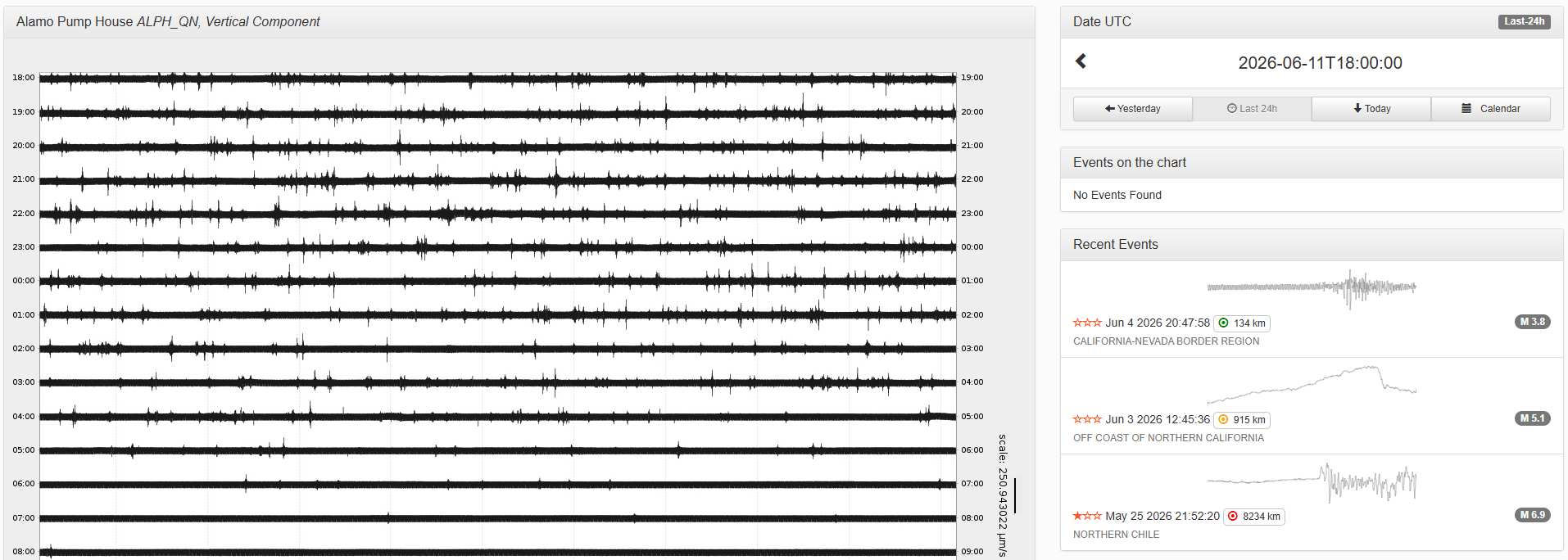
Figure 7: A station’s homepage.
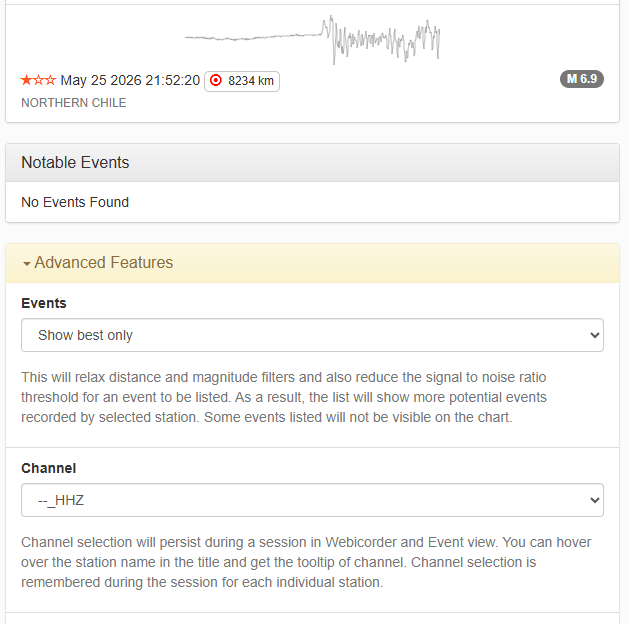
Figure 8: “Channel” under “Advanced Features.”
6. Advanced Features: Filtering the Data
In general, earthquake ground motion recorded in a station’s chart of seismograms can be separated between distant, large ones, and local ones. As ground motion travels over large distances, rapid motion dies off first (high-frequency motion), leaving slower motion to travel further (low-frequency motion). Rapid motion is therefore detected from more local earthquakes. We can separate between these two types of earthquake ground motion by applying a filter to the data in a station’s chart of seismograms.
When a particular shaking motion repeats at a rate of one full motion (or cycle) per second, we say that the motion occurs at a frequency of 1 Hz. Return to the screen with the chart of seismograms (see Figure 7). Under the lists of events, click on “Advanced Features” and select “Filtering” (see Figure 9). Stations in the CEMP Seismic Network have three filtering options to choose from: “No filters”, “1 Hz low pass – Enhance distant earthquakes”, and “1 Hz high pass – Enhance nearby earthquakes”. The default setting is “No filters”, meaning both high- and low-frequency motions are present in a station’s chart of seismograms. Selecting the “1 Hz low pass” filter removes high-frequency motion from a station’s chart of seismograms, while selecting the “1 Hz high pass” filter removes the low-frequency motion. An example of how an unfiltered seismogram changes with these filters can be seen over figures 10-12.
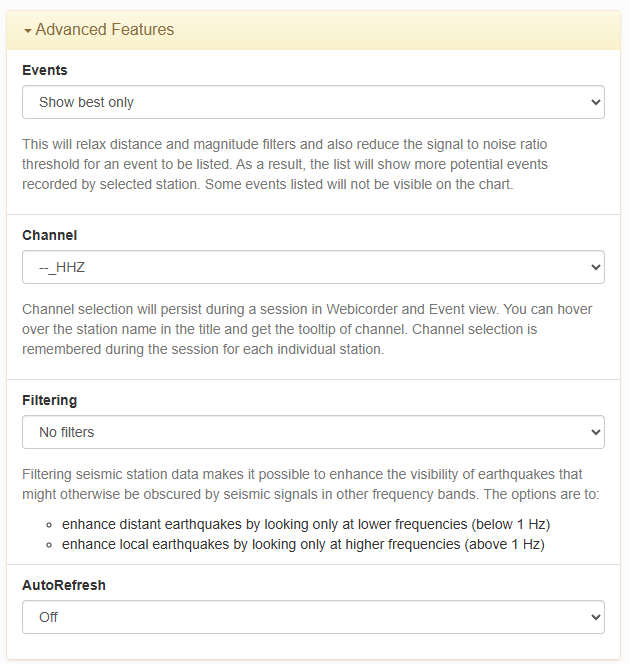
Figure 9: The full set of “Advanced Features.”
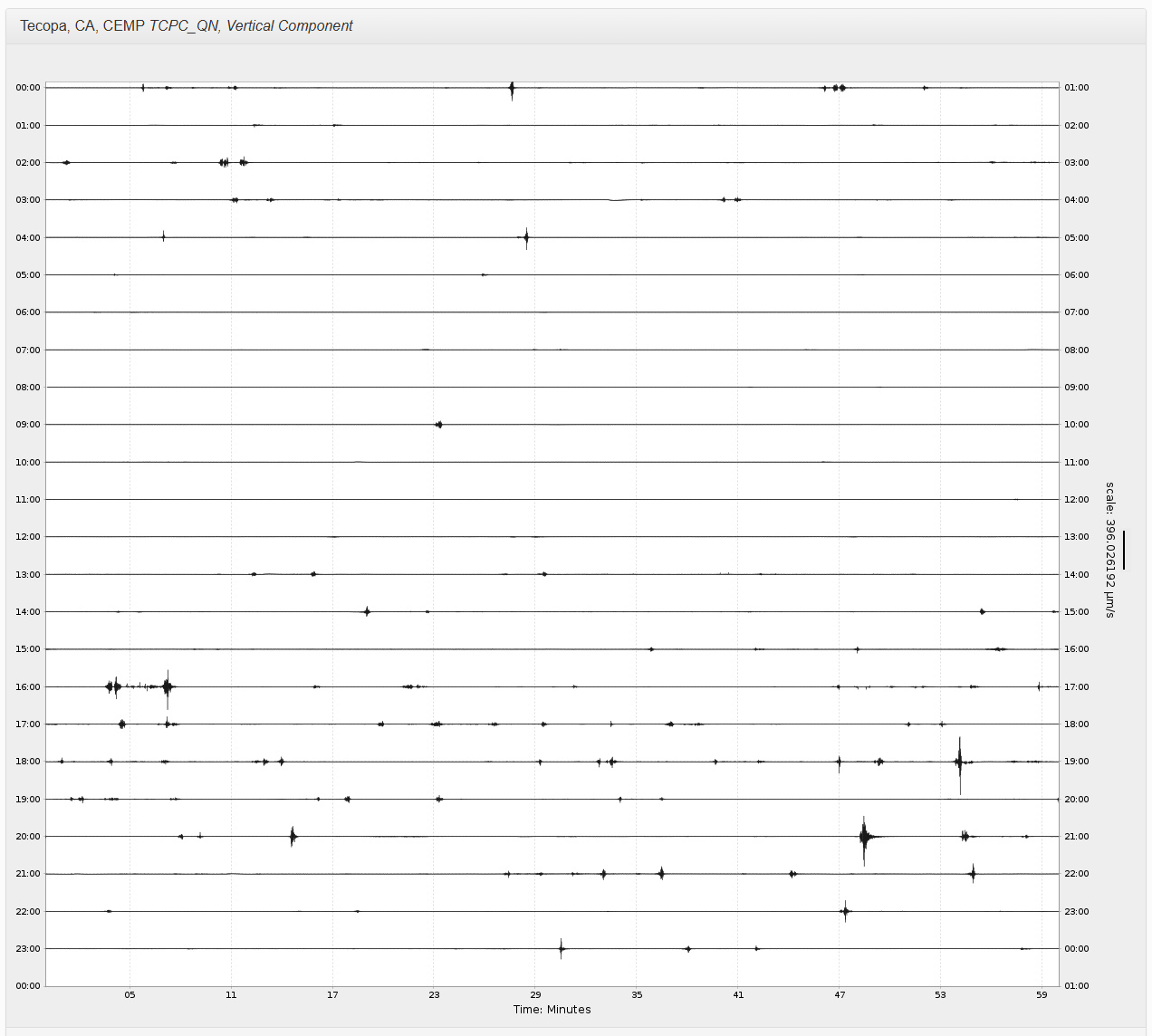
Figure 10: Station chart before filtering.
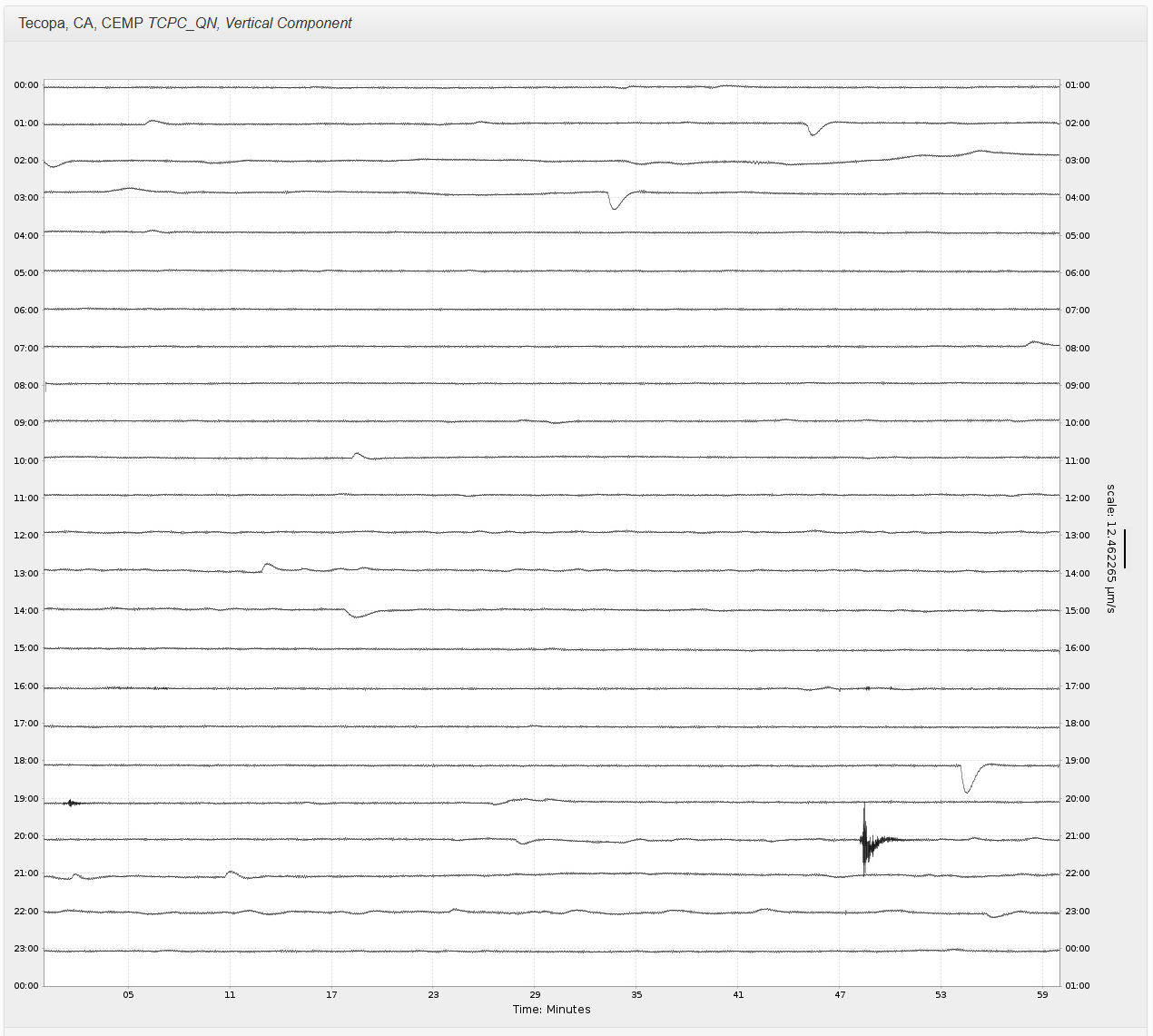
Figure 11: Station chart after lowpass filtering.
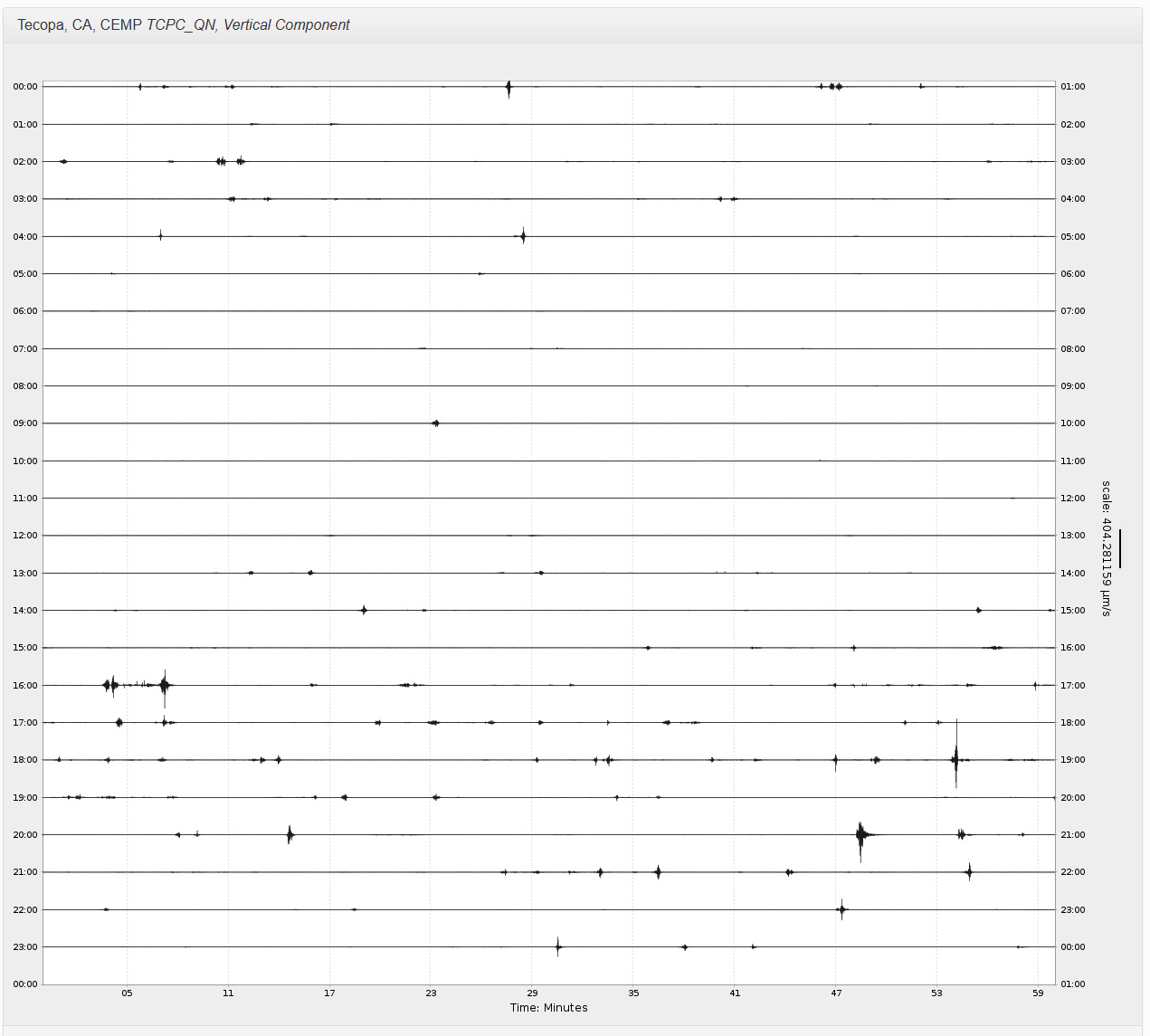
Figure 12: Station chart after highpass filtering.
7. Additional details
For additional help and details about the website’s features, click on the “About” button in the upper left corner of any page (see figure 13).

Figure 13: The ‘About’ button is on the right of the menu banner.